What do I do in an emergency situation?
Contact your placement supervisor – via the details listed on InPlace.
If unable to reach your placement supervisor you can contact a Monash Supervisor on 0419874281.
Adding patients to logbook (completed shifts)
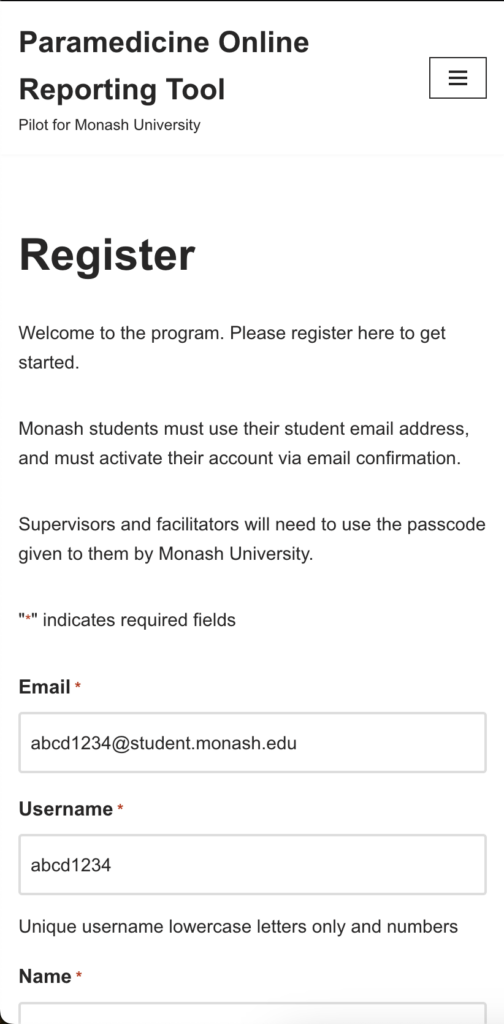
- Register an account
- Create a placement for each placement block
- Create a shift
- Add patients to a shift
- Editing a shift
- Send a shift to your supervisor
- Complete a shift
- Add a reflection
- Review shifts, patients, reflection and feedback
Create a shift
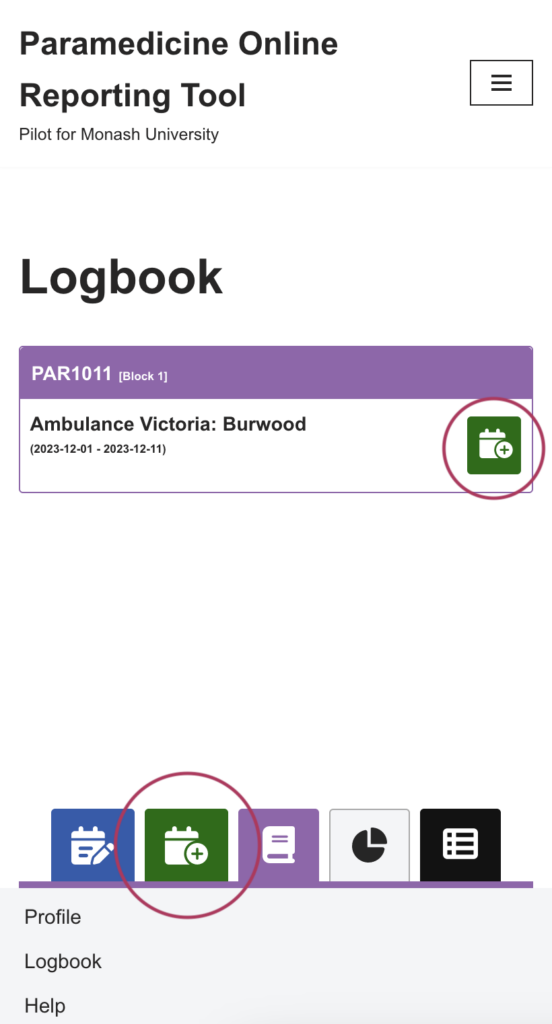
You can create a shift using the link or the button at the bottom of the screen. Once you start you may be prompted about continuous saving. Accept the prompt if you are using a non-public device like your phone or laptop.
There are three stages for your shift,
- While you are working on it
- Once your shift is finished and your supervisors is completing it
- When it is completed
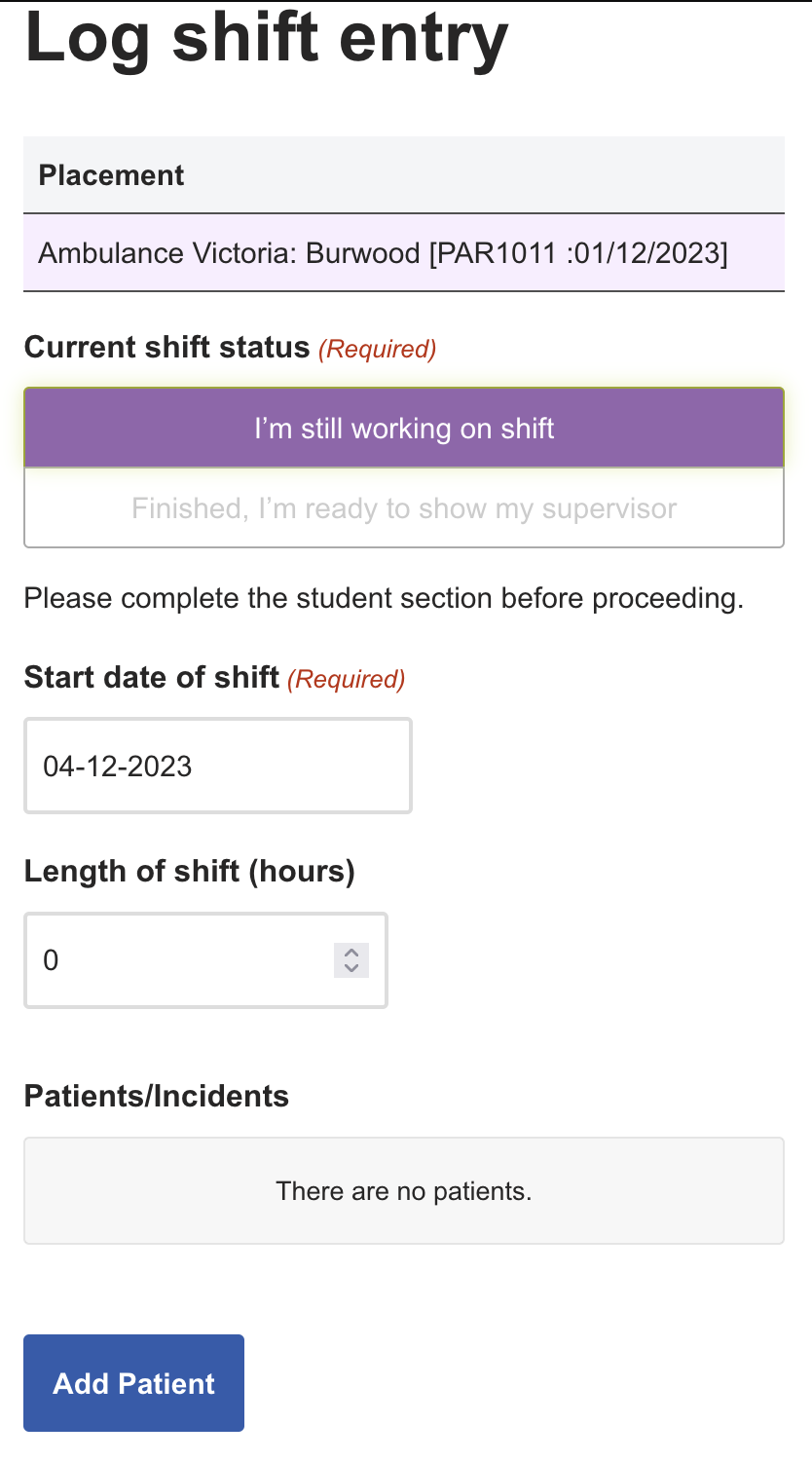
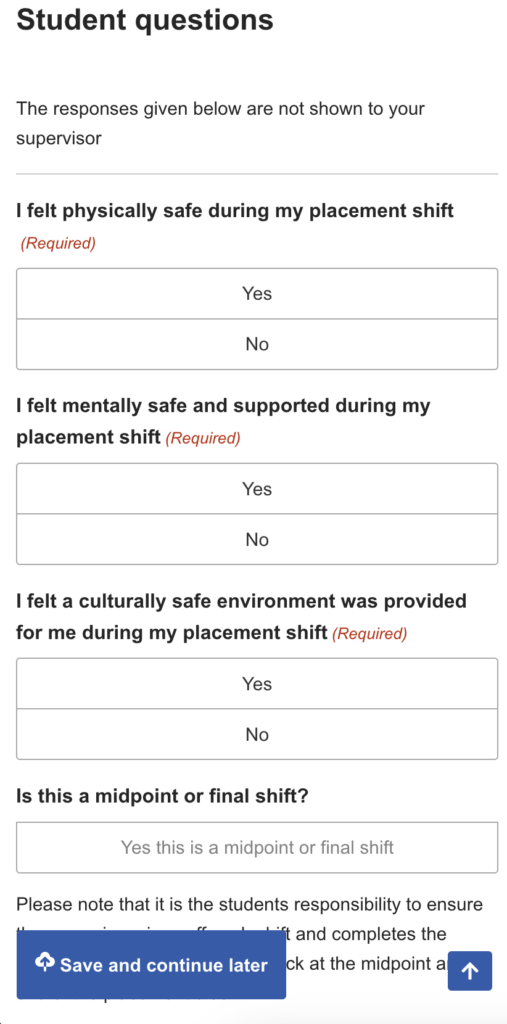
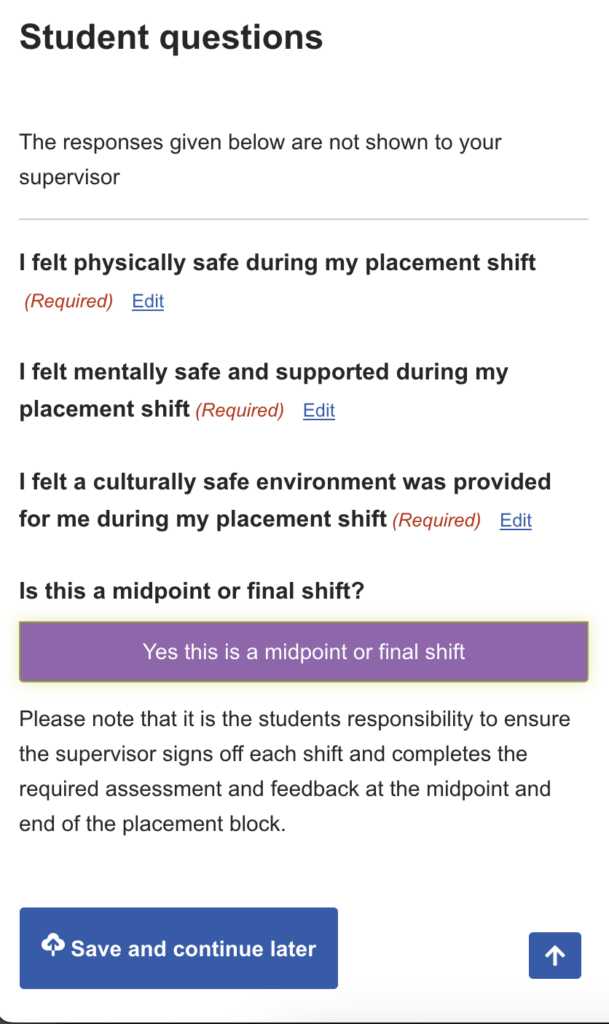
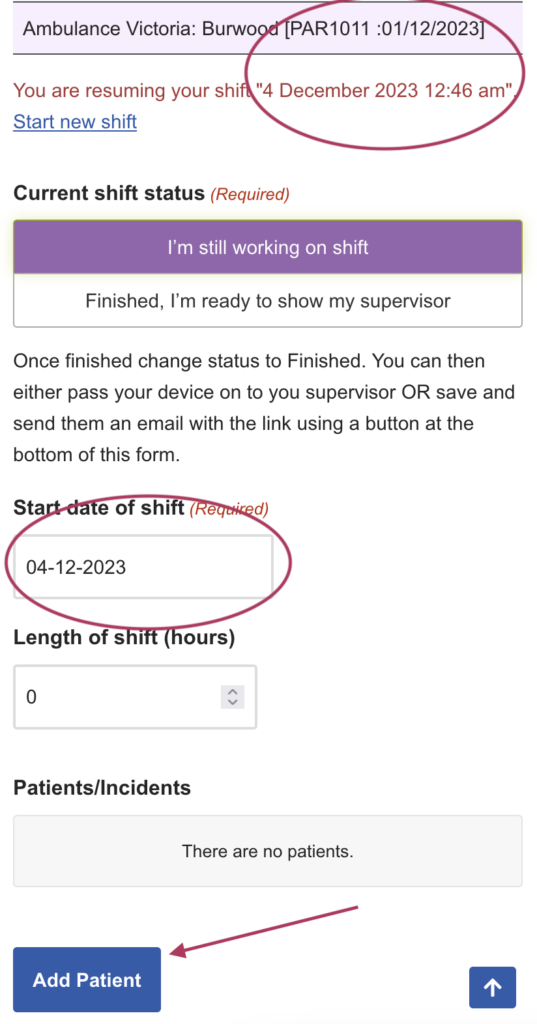
Enter the details of your shift, such as date and duration, and complete the three safety questions. If your placement is at a mid point or is your final placement click the button that states this. You will also need to add any patients to you shift as you go, or at the end.
You can save a shift by clicking the button (save and continue later). Shifts will also save as you go, so if the window times out or closes your details will be kept for the next time you login.
Add patients to a shift
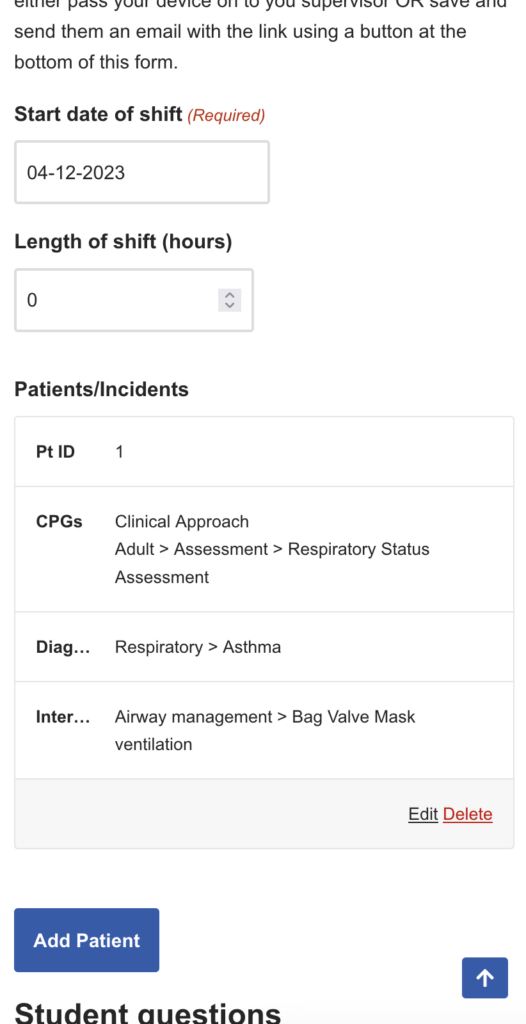
To add a patient simply open the shift you want to add patients to, via the logbook. You can also access the current shift if there is one open. Check the details of the shift you have selected to make sure you are on the right one. You can have more than one shift open at a time given that not all supervisors will complete the forms at the end of every shift.
There are a number fields to complete
- CPGS (select multiple CPGS)
- Diagnosis (select one diagnosis, or select Unsure/Unknown)
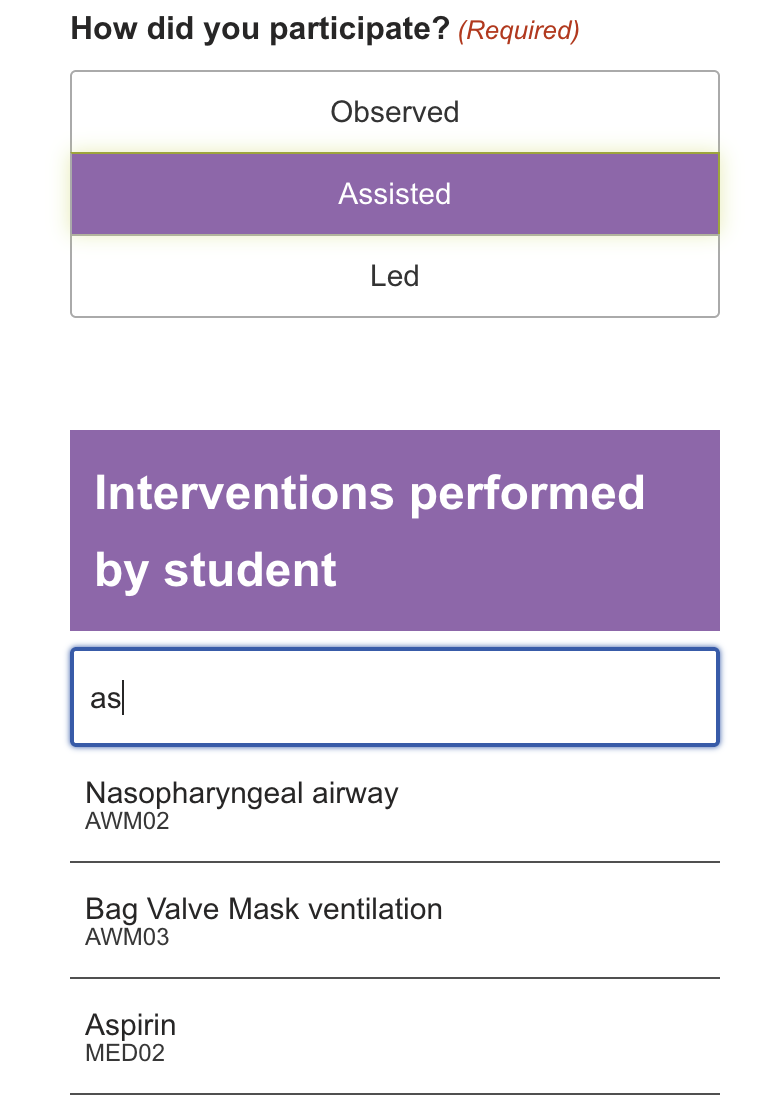
- Describe how you participated
- If you Assisted or Led selected one or more Interventions
- Choose and age
- Choose a gender
- Add additional notes
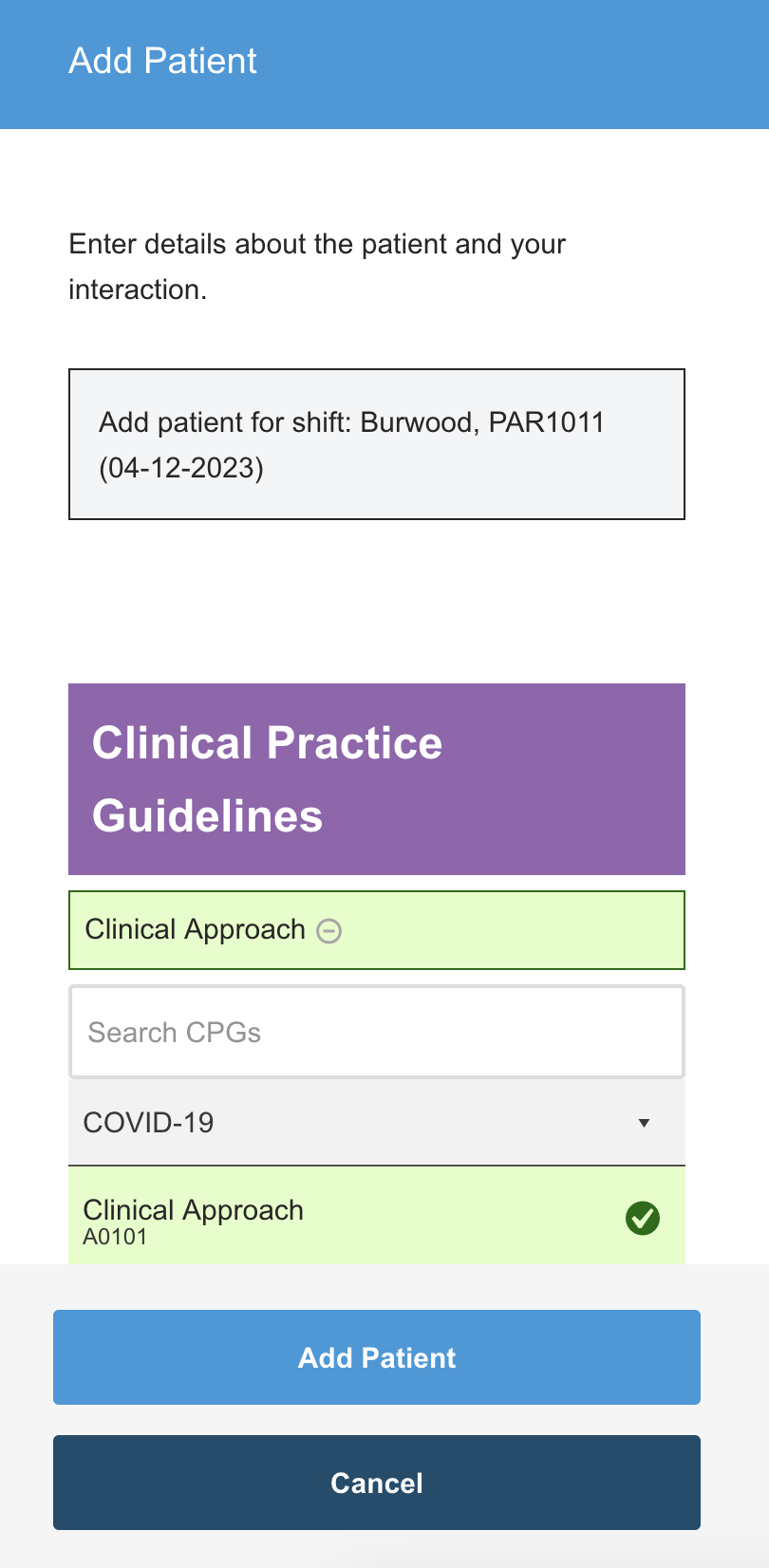
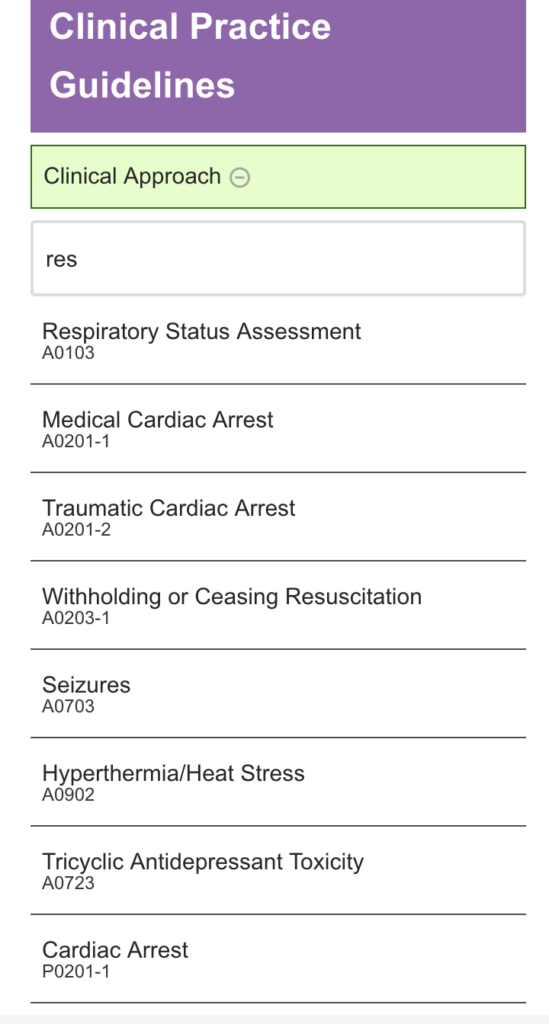
Select CPGs from the expandable table. You can also search for CPGs. Click the minus in a circle or the selected CPG to remove it from the list.
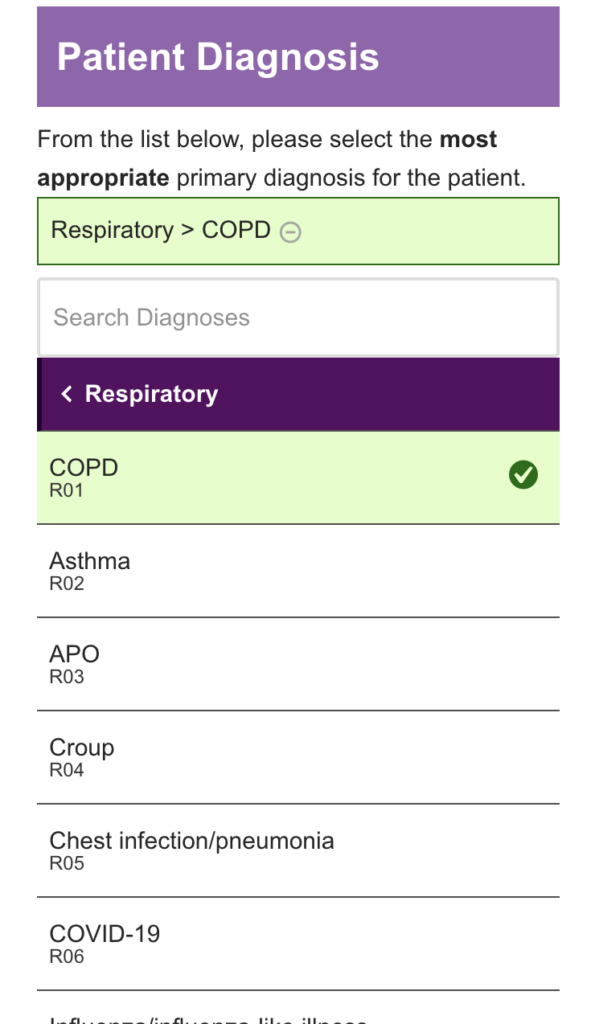
Perform similar steps for diagnosis and interventions as you do for the CPGs. Answer the participation, age, and gender questions. Add any additional notes. Once happy click add patient. This will return you to the open shift.

Editing a shift
You can edit a shift at any point from the log book. Click the edit shift icon from the menu, or via the logbook panel.
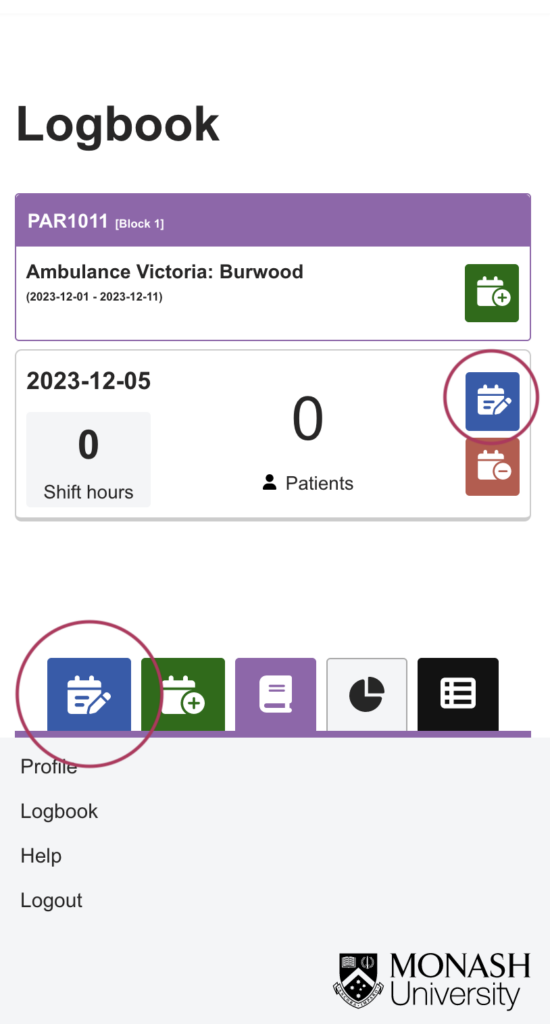
Using the menu on the bottom of the screen will load the most recent shift for editing.
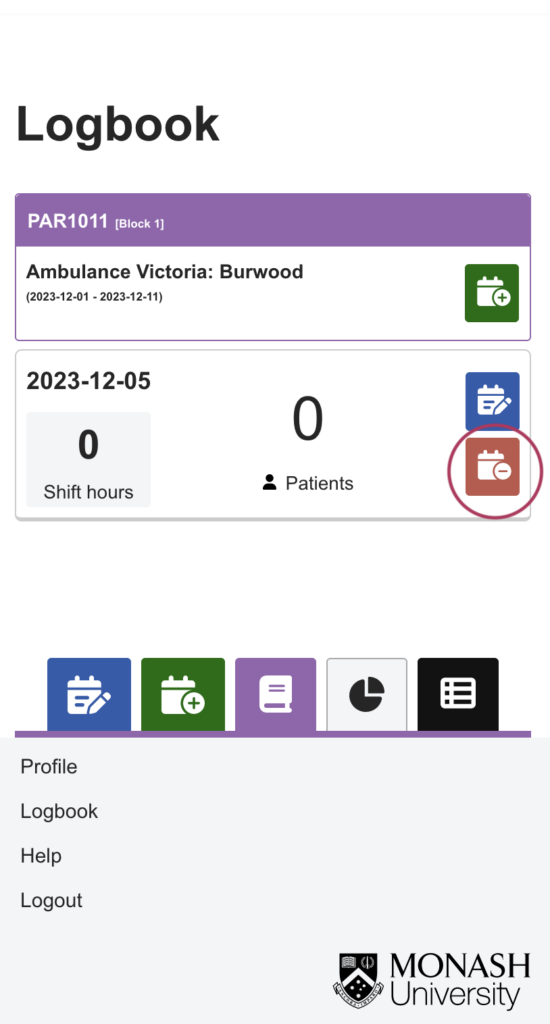
Deleting a shift is only possible while the shift is still in student mode (while your are still on shift), once you choose to send it to the supervisor you will not be able to delete it.
Sending your shift to your supervisor
You can ask you supervisor to complete your logbook/shift in two ways.
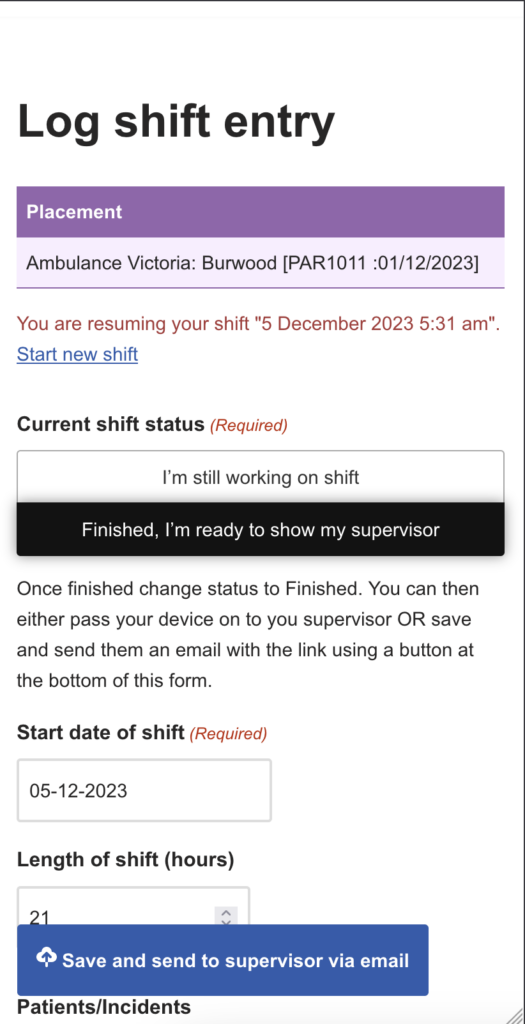
Selected the “Finished, I’m ready to show my supervisor” and then show them your mobile to finish the form. Make sure they click submit at the bottom of the form
OR
Selected the “Finished, I’m ready to show my supervisor” then click the “Save and send to supervisor vial email” at the bottom of the screen. You will need to enter their email address on the following page. This will send you supervisor a link and they can complete the form at a time that is more convenient.
In both cases they must enter their name, email and AV number in order to see the submit button.
Passing your phone to the supervisor

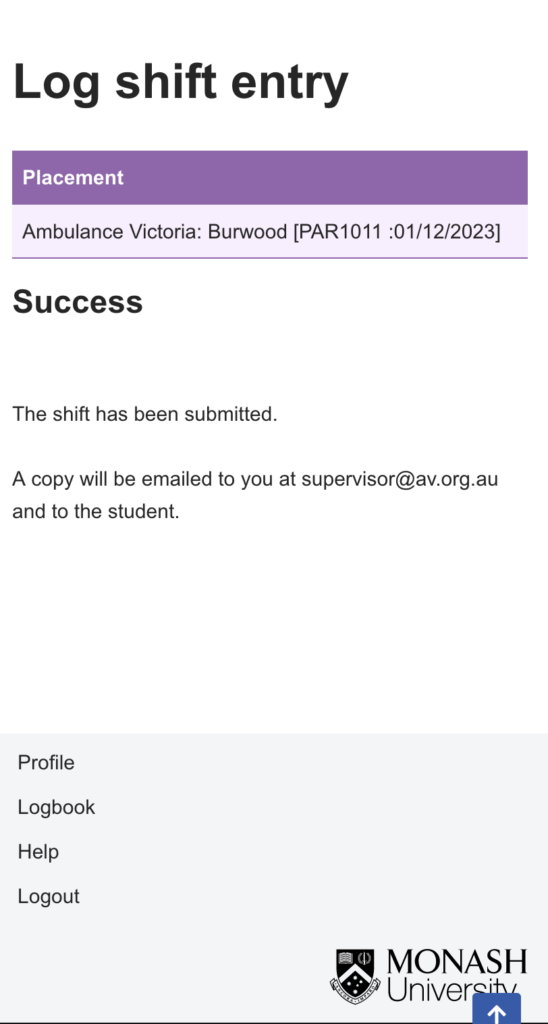
Sending your shift to the supervisor via email


Your supervisor will receive instructions via email. This will include the link to access the shift form.
Completed shift
A shift can be at one of three stages
- Student stage (while the shift is still occuring) – you can only delete reports at this stage contact us if a shift needs to be removed after this step.
- Supervisor stage (once the shift is completed, but the supervisor has yet to give feedback)
- Completed (the supervisor has submitted their feedback)
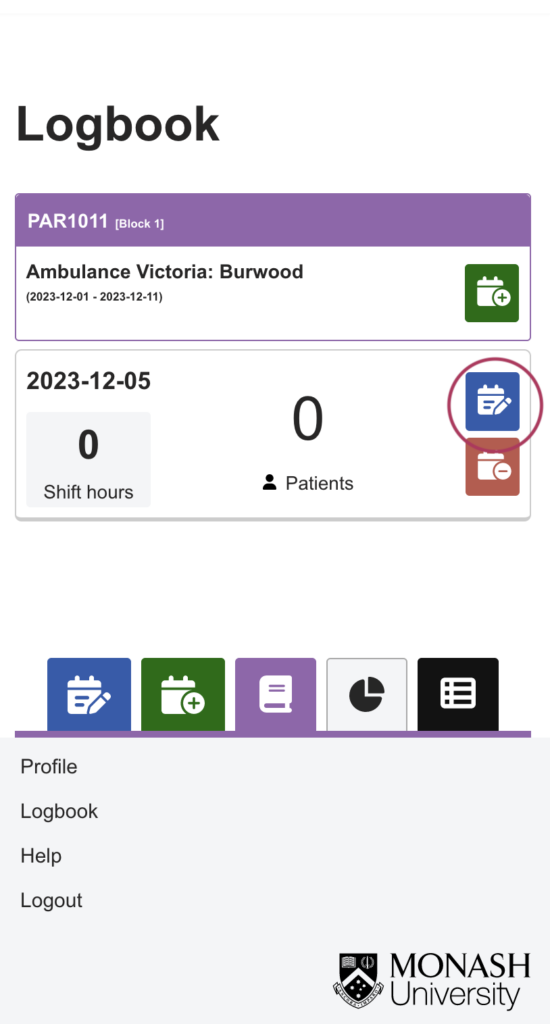
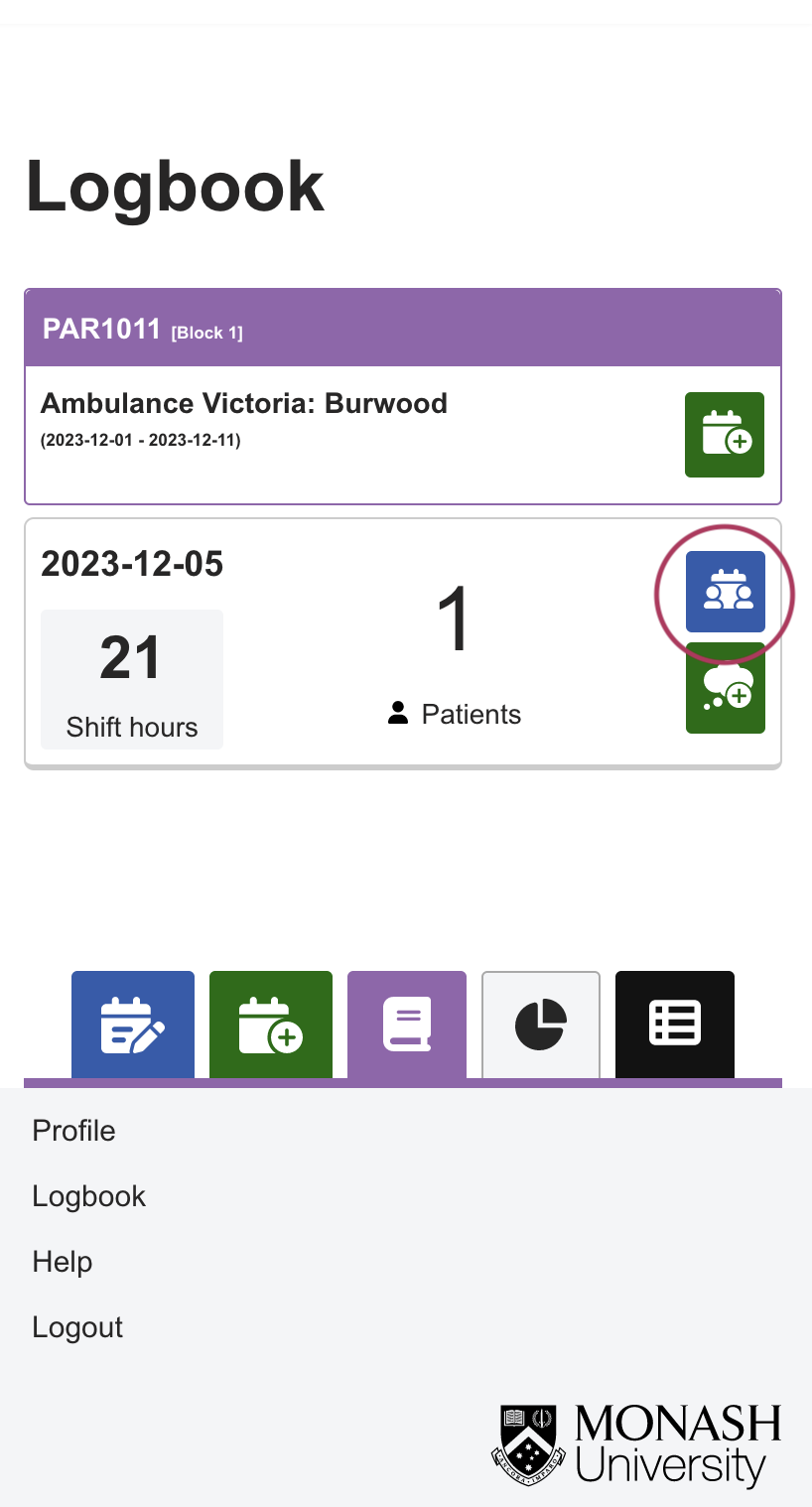
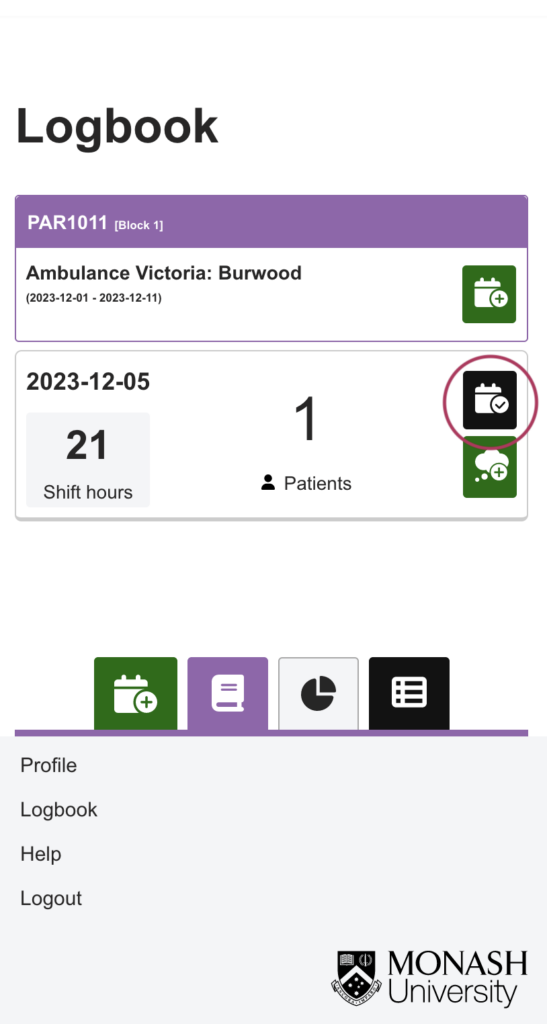
The icon will change at each stage.
You can review the completed shift by clicking the icon.
Adding a reflection
You can add a reflection once your shift is complete.
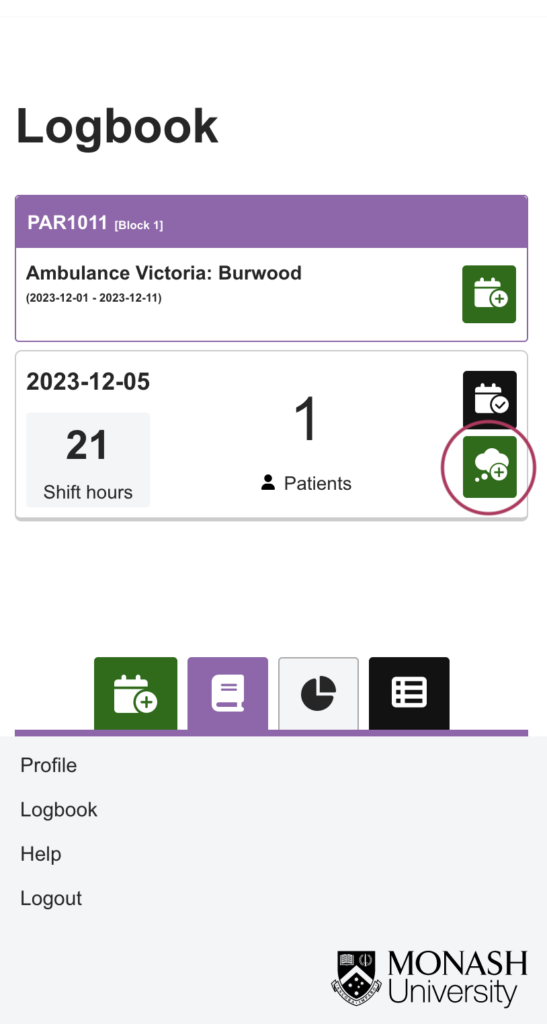
Click the green though bubble to add a reflection.

You can not save progress so a reflection should be completed in one sitting.
Review shift, patients, reflection and feedback
Look for the black icons to review any submitted items. These can be found on the logbook page as well as the summary page.
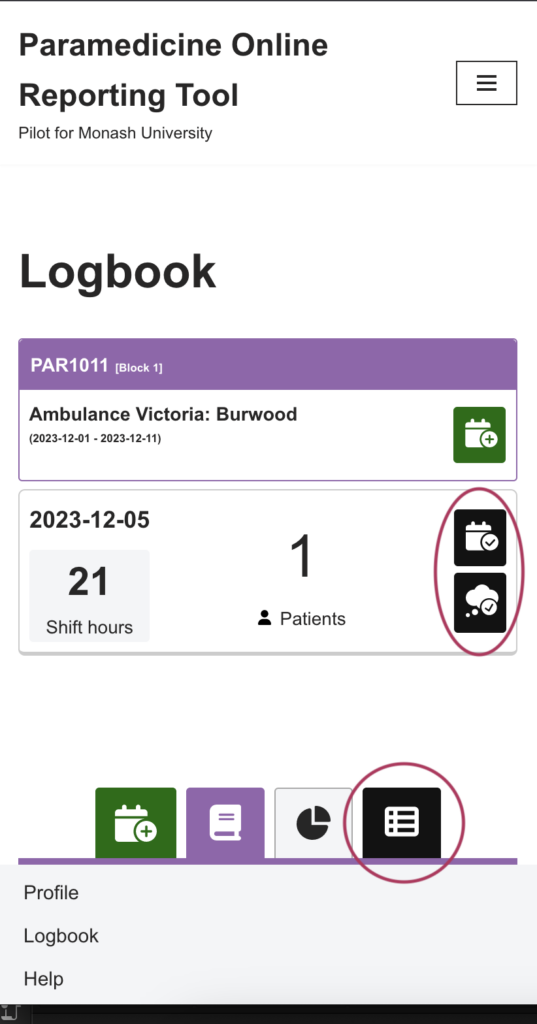
Click the the black icons to review. The summary page can be accessed via the footer menu and the regular menu.
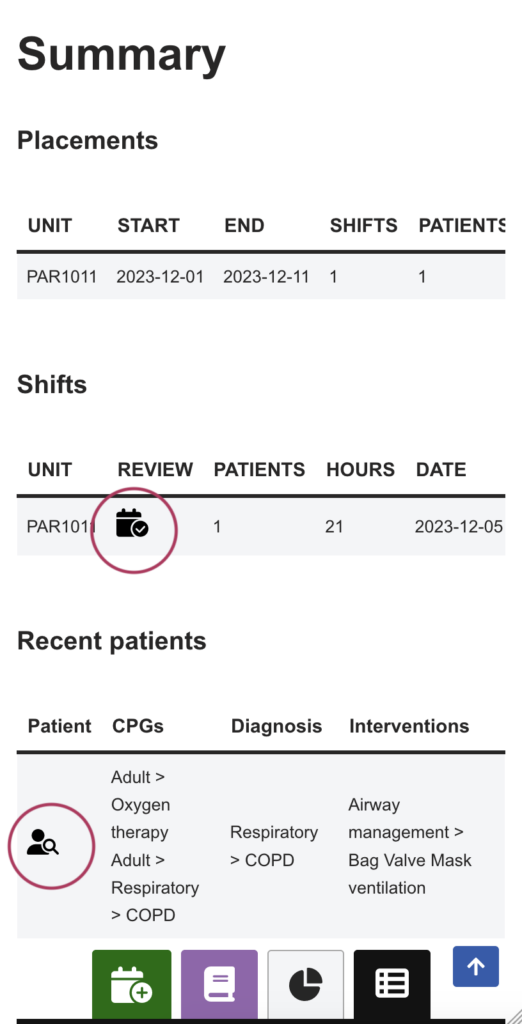
The summary page lists all the shifts and patients in tables. Click the black icons to review.
Create a new placement or block
Create a placement/block for your shifts. Your shifts will be attached to this placement. Choose the details of your placement/block. Assign the provider and find the location of your placement through the short list that appears as you type the site location. The location data can take a second to load, as you type the list will be shortened. This is a complete list of placement sites, if you feel data is missing then please contact us to add the new site to the list.
Once the placement/block has been added you can then create your first shift

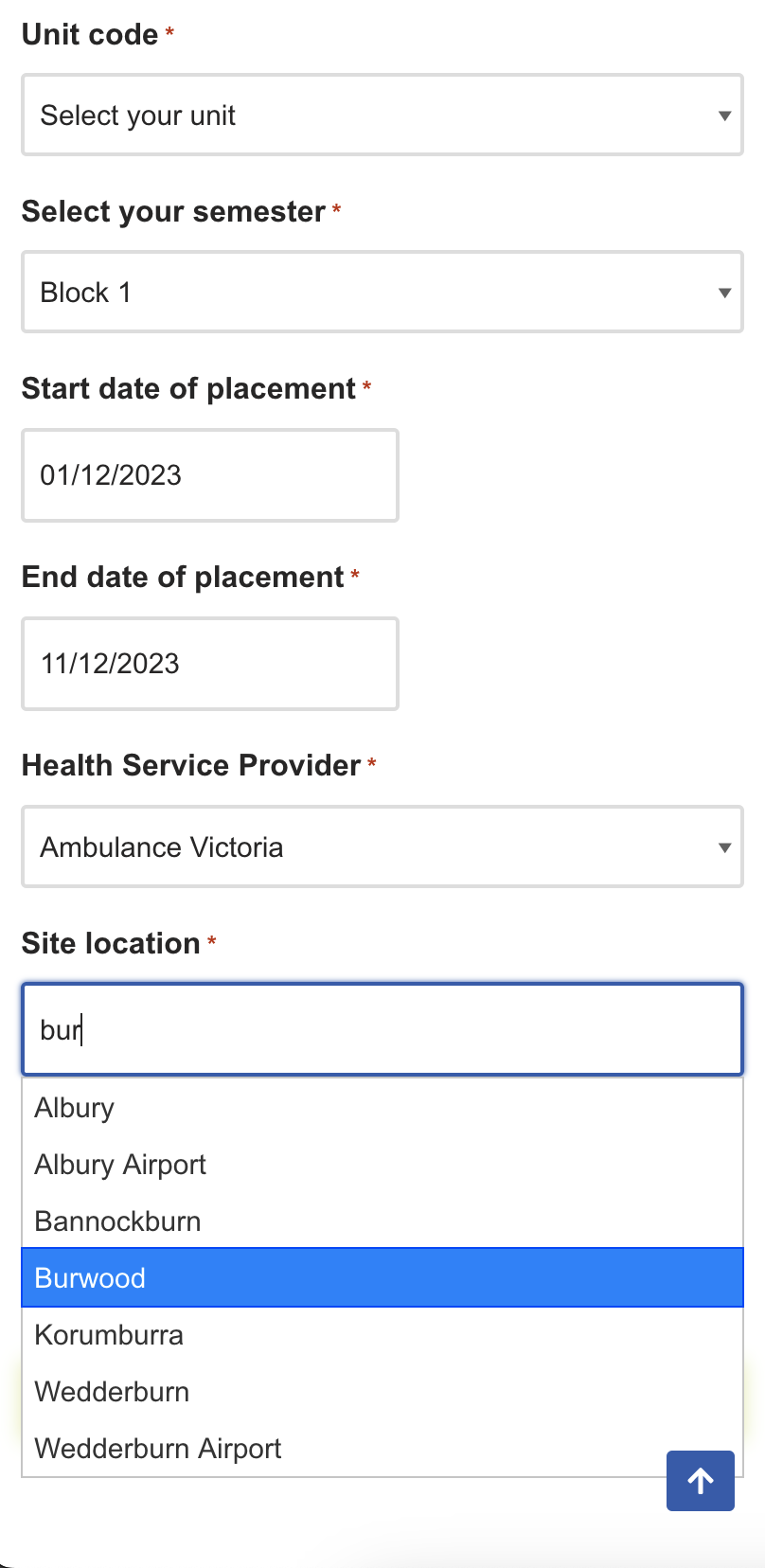
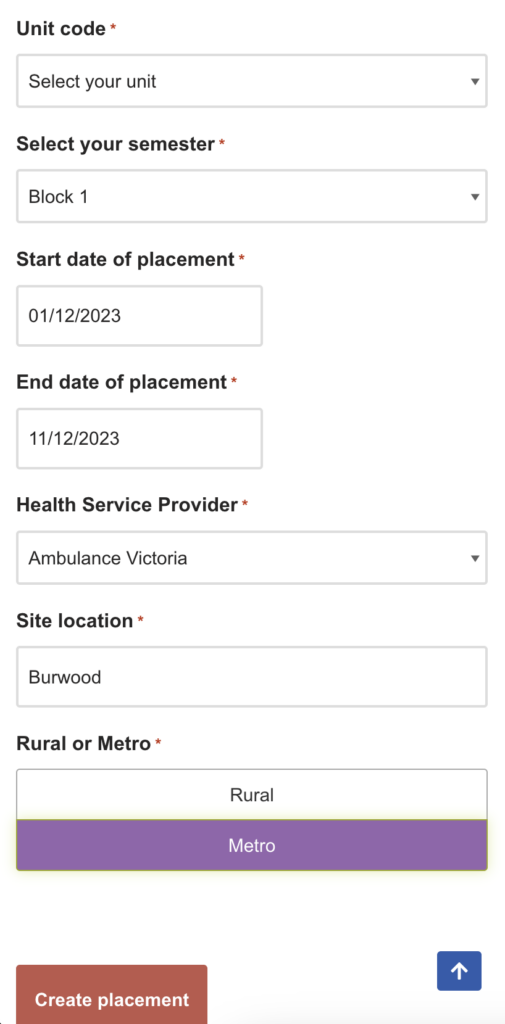
Placements will no longer appear on the main logbook page 30 days after the final date of your placement. You will still be able to review placements via the summary page. All your feedback and reflection should be completed before this 30 day period.
Register an account
There are a few steps required to register an account
- Make sure to use your student.monash.edu email address
- Create a unique username
- Add you first and last name
- Add you 8 digit student code
- Create a strong password (12 characters long any letters, numbers or punctuation)
- Agree to the privacy terms
- Click the register button (you will need to have added a student email and agreed to the terms before you can see the register button)
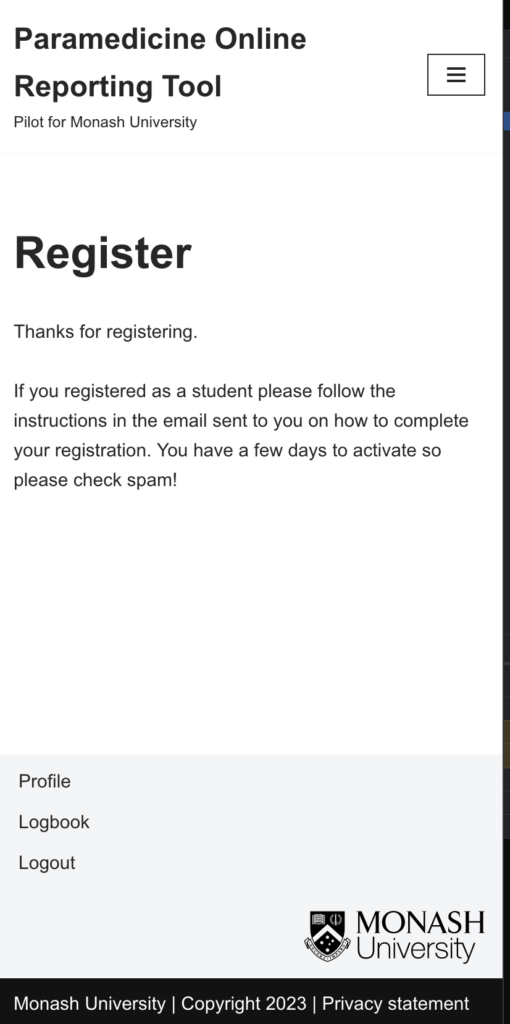
- Once registered, you will receive a confirmation email with an activation link, you must activate your account before you can login. Check Spam.